
A New Website: One Page, Built Around People
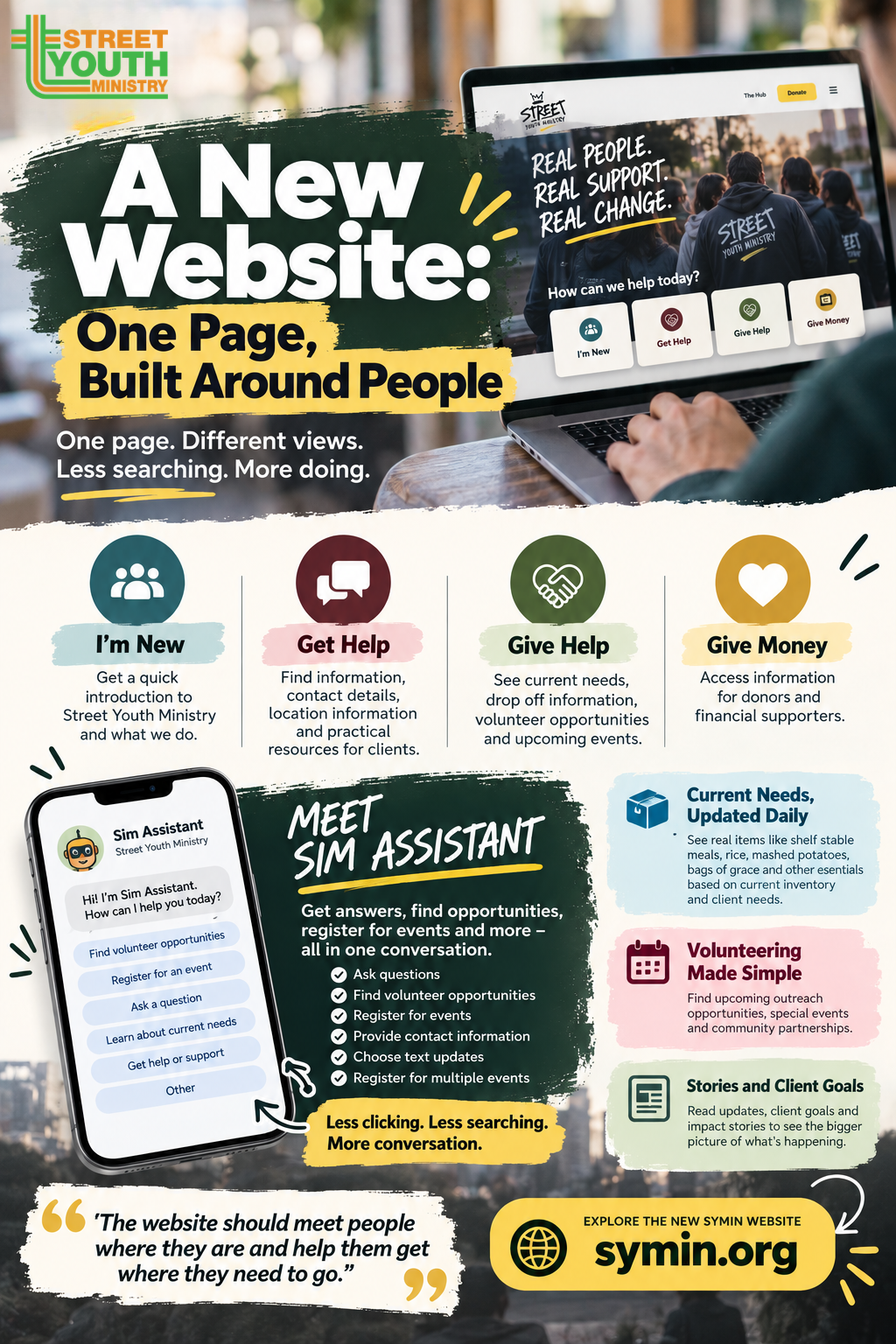
Ask asked for it for years. Not you have it... a new website at symin.org. It's updated daily, fast, and ONE page! One page. Different views. Less searching. More doing.
SI-26944
SI-26769
Ask asked for it for years. Not you have it... a new website at symin.org. It's updated daily, fast, and ONE page! One page. Different views. Less searching. More doing.
How the New Symin Website Works: One Page, Dynamic Views, and Chatbot Sign-Up
Step 1. Open the new website and notice the simplified experience 0:09
The new website is built around one main page rather than sending visitors through lots of different pages.
As you scroll, the information changes based on what you are looking for.
- Go to symin.org.
- The site loads quickly and is designed to feel lightning fast.
- Instead of multiple pages, the site is built around one main page.
- Key actions like donating are immediately visible without hunting through menus.
Step 2. Use the page tabs to switch between audience-specific views 0:35
The website gives visitors several ways to find what matters to them:
- I’m New – Learn who SYMin is and how things work.
- Get Help – Find resources and support.
- Give Help – See ways to volunteer or donate needed items.
- Give Money – Make a financial contribution.
This means you can get to the information you need without having to search through the entire website.
- The default view is "I'm New", which gives a general overview.
- If you are a client, click Get Help to update the page to client-focused information.
- If you want to give help, click Give Help to see volunteer and donation-related content.
- If you want to give money, switch to the donor view.
- The important idea: it is still the same page, but the content changes live based on what the visitor needs.
Step 3. Find the right information based on your role 1:11
- New visitors see broad, introductory information.
- Clients immediately see:
- what the organization does,
- where it operates,
- how to find the location on a map,
- how to contact the team.
- People giving help see:
- donation drop-off locations,
- shipping address details,
- map-based directions.
- The goal is to make the site feel direct and useful for each audience.
Step 4. Scroll to see current needs and donation items 1:44
- Stay on the Give Help view to see what the organization currently needs.
- The site shows items such as:
- bags of grace,
- shelf-stable meals,
- rice,
- mashed potatoes,
- store items,
- stretch wrap film.
- These needs are updated daily by the team and client activity.
- This makes the site feel live and always current.
Step 5. Browse volunteer opportunities and upcoming events 2:32
The site also highlights special events and community partnerships.
This gives visitors another way to get involved beyond regular volunteering or donations.
- Scroll down to see volunteer opportunities.
- Events are listed in time order, with the soonest event appearing first.
- You can click any event to learn more.
- Examples mentioned include:
- Downtown Outreach,
- Republic Square Outreach,
- Thursday Outreach,
- West Campus Outreach,
- San Marcos Outreach.
- The site also includes ongoing help needs like the Sunshine Store, where volunteers help sort and organize donations.
Step 6. Explore special events and community partnerships 3:20
- The page also highlights special events.
- Examples include:
- a group coming from YouTube / Tribeta Service Project,
- a Mission Fair at Covenant Presbyterian Church.
- For each event, visitors can:
- learn more,
- register their presence,
- or sign up to participate.
- This section helps people see what the organization is actively doing in the community.
Step 7. Read stories, goals, and donation-related updates 3:36
- Continue scrolling to find stories and updates.
- Examples include:
- Graduation Gratitude for Corporate Sponsors,
- Client Goals updates.
- The organization emphasizes that clients set their own goals and are supported along the way.
- There is also a long list of donatable items tied to the inventory system.
- This section shows impact, progress, and what kinds of support are most useful.
Step 8. Use the chat assistant at the bottom for help or sign-up 4:07
- At the bottom of the page, there is a chat assistant button called Sim Assistant.
- Instead of filling out traditional forms, visitors can use the chatbot to:
- ask questions,
- get help,
- register for volunteer events.
- The site is intentionally designed so users do not have to search through multiple pages or forms.
Step 9. Register for a volunteer event through the chatbot 4:50
- Choose an event you want to attend, such as Thursday Sunshine Store.
- Click to sign up, and the chatbot starts the registration flow.
- The assistant asks for:
- your name,
- your email address,
- your phone number,
- whether you want text updates.
- You can choose not to provide optional details if you prefer.
- You can also add another event before finishing, if needed.
Step 10. Submit the reservation and receive confirmation 6:01
- After answering the chatbot’s questions, confirm that you are done.
- The system submits your volunteer reservation.
- You receive a confirmation message that the reservation was successfully submitted.
- A confirmation email is also sent.
- This replaces the old form-based process with a simpler, conversational workflow.
Step 11. Explore articles and other content through The Hub 6:29
- If you want to read articles, use The Hub.
- The Hub is another part of the site for exploring content.
- The overall experience is still designed to be fast, simple, and easy to navigate.
- The main takeaway: the new website is a single-page, dynamic, chatbot-enabled system that adapts to each visitor’s needs.
Watch the Walkthrough
See Terry walk through the new website and explain how the different pieces work.
<p></p>
Print & PDF Document Assistant
Street Youth Ministry Hub Publication
This document is styled for printing and PDF generation with a dedicated SYM header, 2-column photo layout, and donation callout.
💡 Preview Environment Tip:
If your browser security settings sandbox printer popups in the embedded preview pane, clicking "Toggle On-Screen Print Preview Mode" simulates the exact print view on screen, or use browser shortcut Ctrl+P / Cmd+P.
Support Youth Experiencing Homelessness
Scan below to give financially, subscribe to field updates, or join our dedicated prayer team: